
AI Setup Guide
Connect your preferred AI provider to unlock AI-powered filename generation in VividForm.
◷ Estimated time: 5-10 minutes
Open Settings → AI Services and choose the AI provider you'd like to use. We recommend OpenAI for first-time users because it's the quickest and easiest to set up. You can change providers at any time without affecting your images.

Choose Your AI Provider
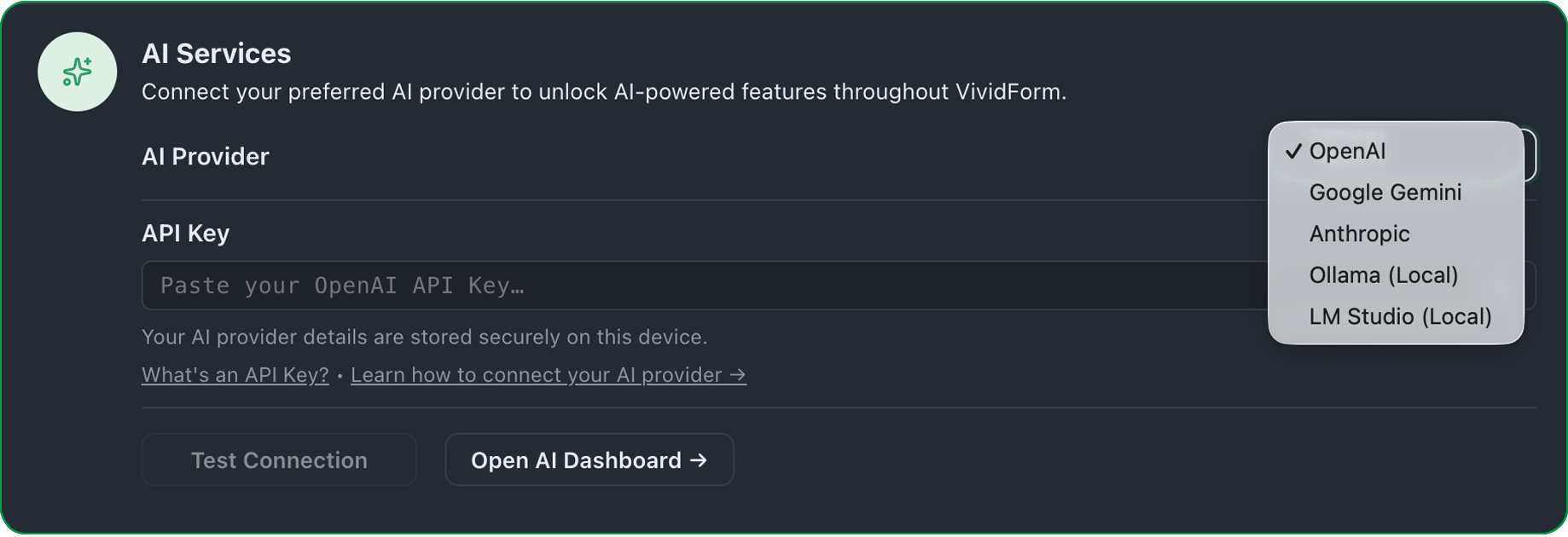
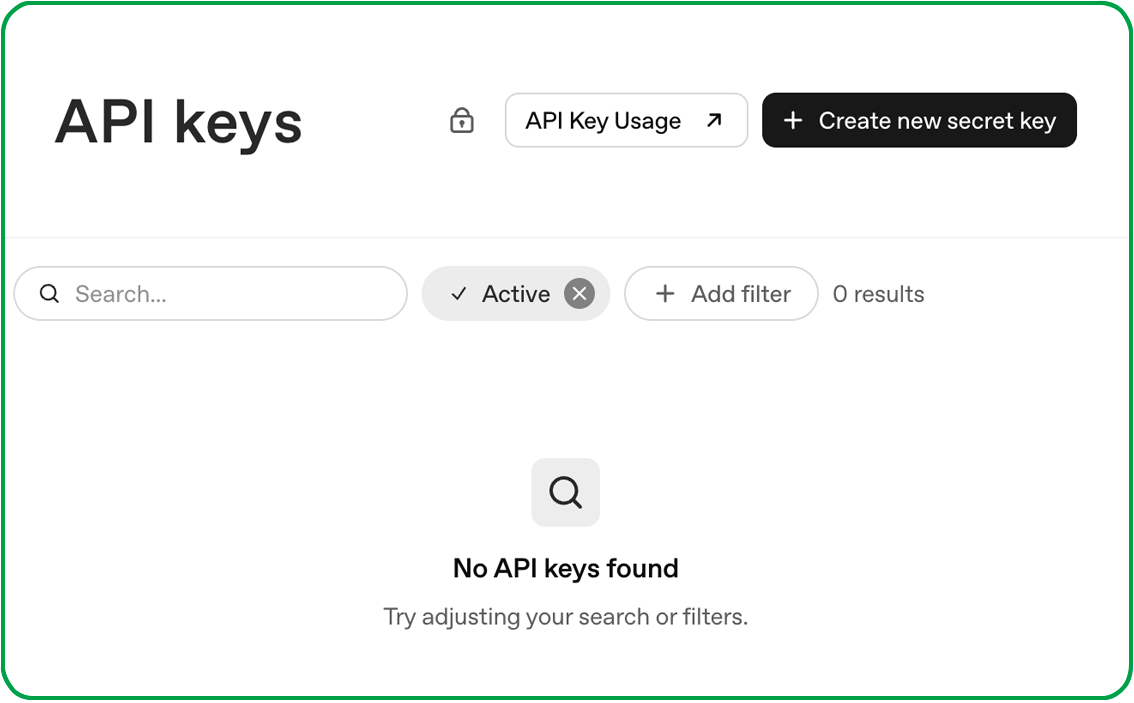
Visit your chosen AI provider and create a new API key.
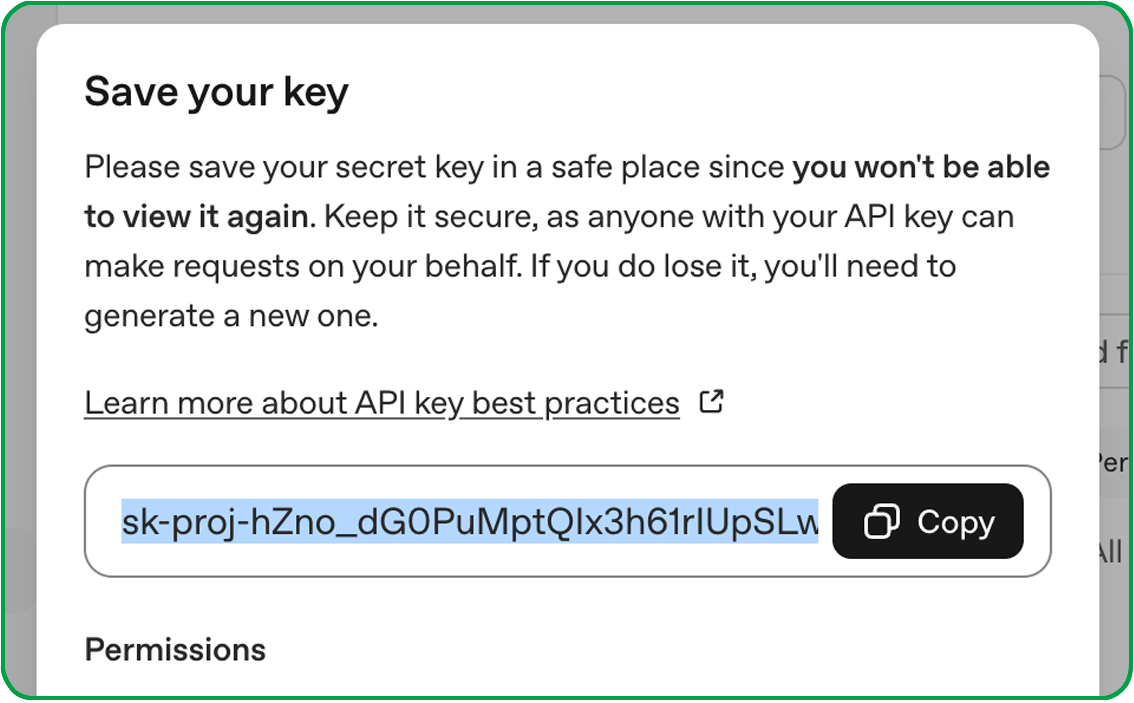
Once created, copy the key and store it somewhere safe. Most AI providers only display your API key once, so save it somewhere safe before closing the page.
Creating a new API key won't affect any credit you've already purchased. Your credit belongs to your account, not to an individual key.

Create an API Key
Return to VividForm and open Settings → AI Services.
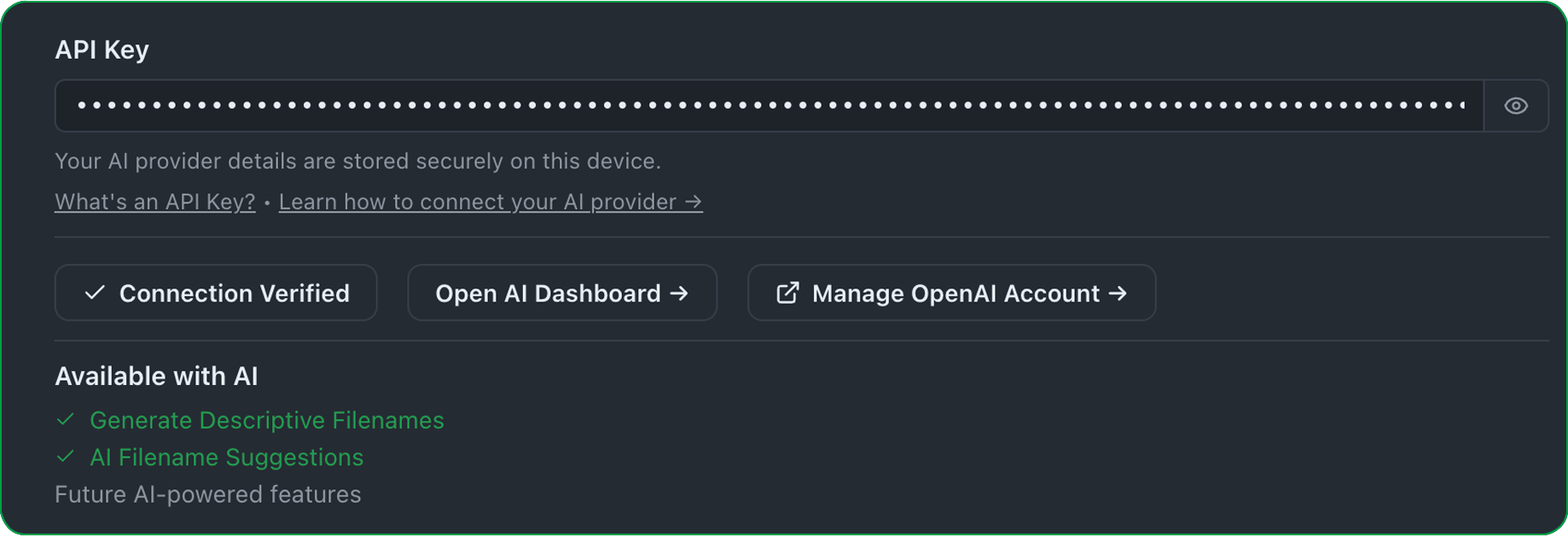
Paste your API key and click Connect.
If the connection is successful you'll see Connection Verified, confirming that VividForm is ready to communicate securely with your AI provider.

Connect VividForm
Some AI providers, including OpenAI, require prepaid API credit before requests can be processed.
If your balance reaches zero, simply click Manage OpenAI Account to open your provider's billing page and add more credit.
VividForm never charges for AI usage. You only pay your selected AI provider.

Add AI Credit

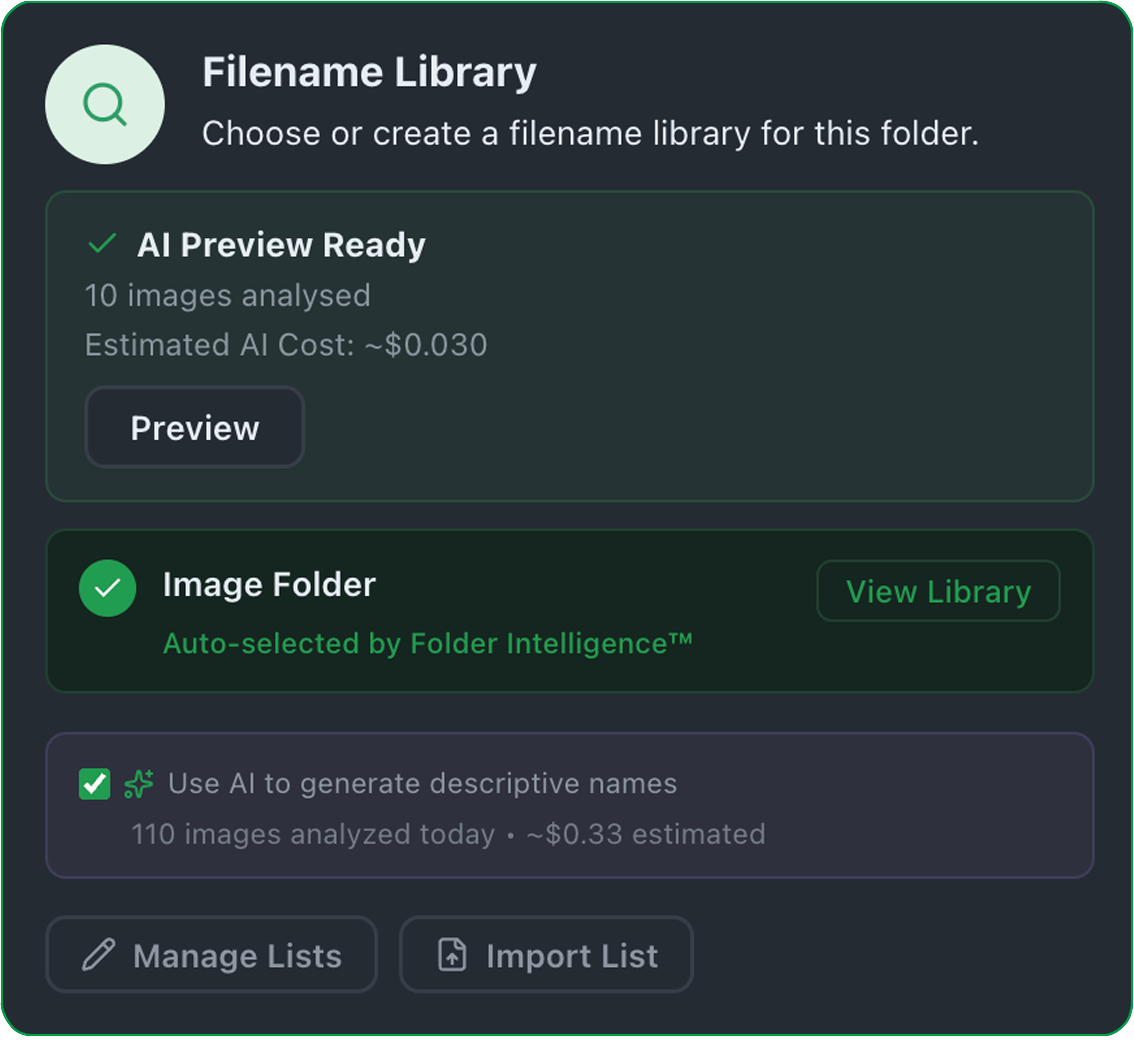
Select an Image Folder and either create a new Filename Library or open an existing one.
Enable Generate descriptive filenames using AI, then click Process Images.
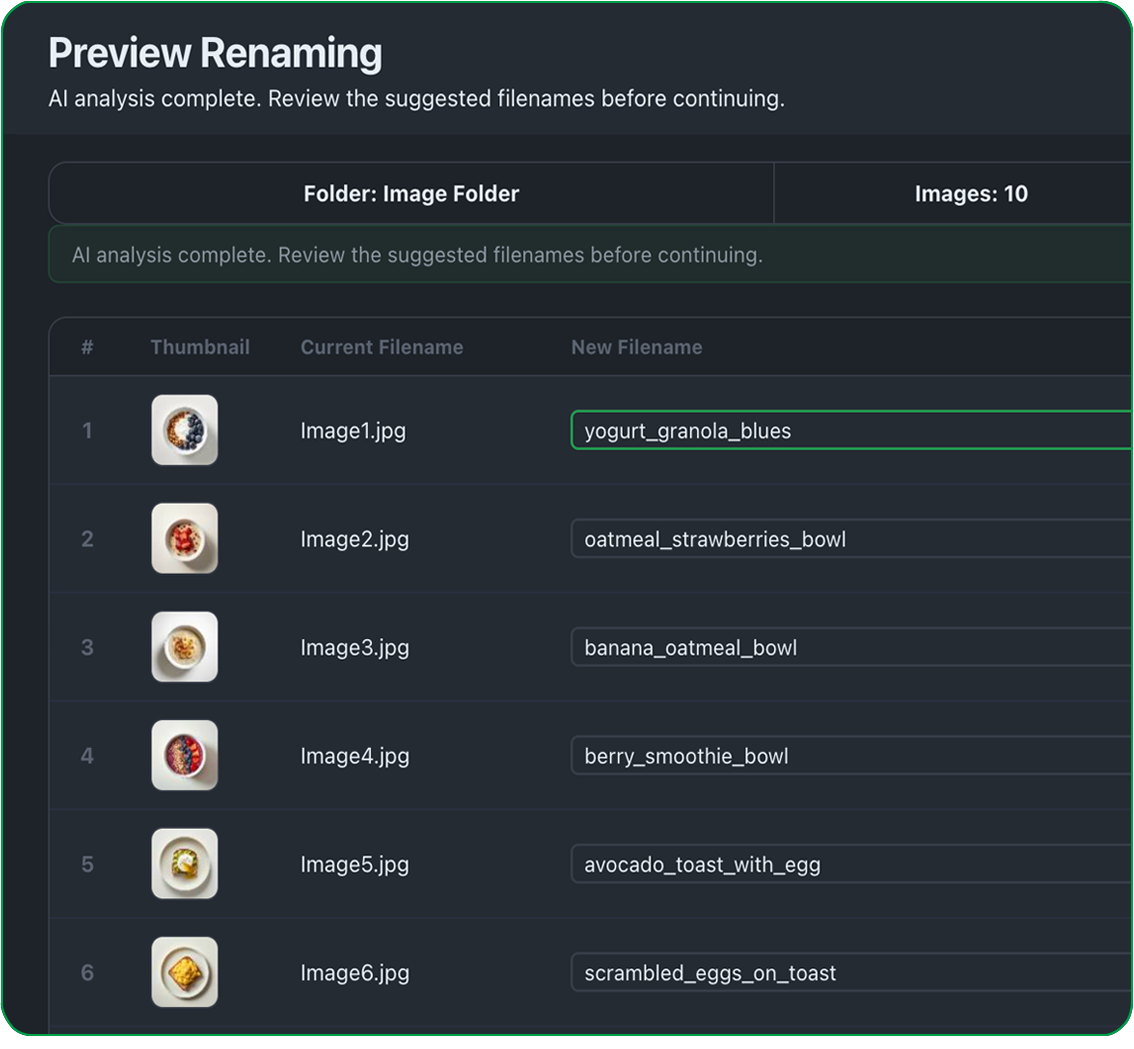
VividForm analyses each image and generates intelligent filename suggestions using your connected AI provider.
During analysis you'll see:
Live progress
Current image being analysed
Estimated AI cost
When analysis is complete, click Preview to review every suggested filename before any files are renamed.
You can edit any filename before continuing.
When you're happy with the results:
Create Filename Library (new library)
Save Filename Library (existing library)
Finally, click Process Images again to rename your images.

Generate & Review AI Filenames


You're Ready!

Your AI provider has been verified successfully.
You're ready to generate intelligent filename suggestions, review every result before processing, and build reusable Filename Libraries with confidence.
Every time you enable AI, you'll be able to:
Generate intelligent filenames

Review every AI suggestion

Edit filenames before processing

Create reusable Filename Libraries

Process with confidence

AI suggests. You review. VividForm processes.
Intelligent filenames. Full control. Every time.

Need to buy more AI credit?
Manage your AI provider and billing at any time from Settings → AI Services.