
Your First Batch
Rename your first set of images in just a few simple steps.
◷ Estimated time: 5 minutes
This matches the tone of the rest of your documentation.
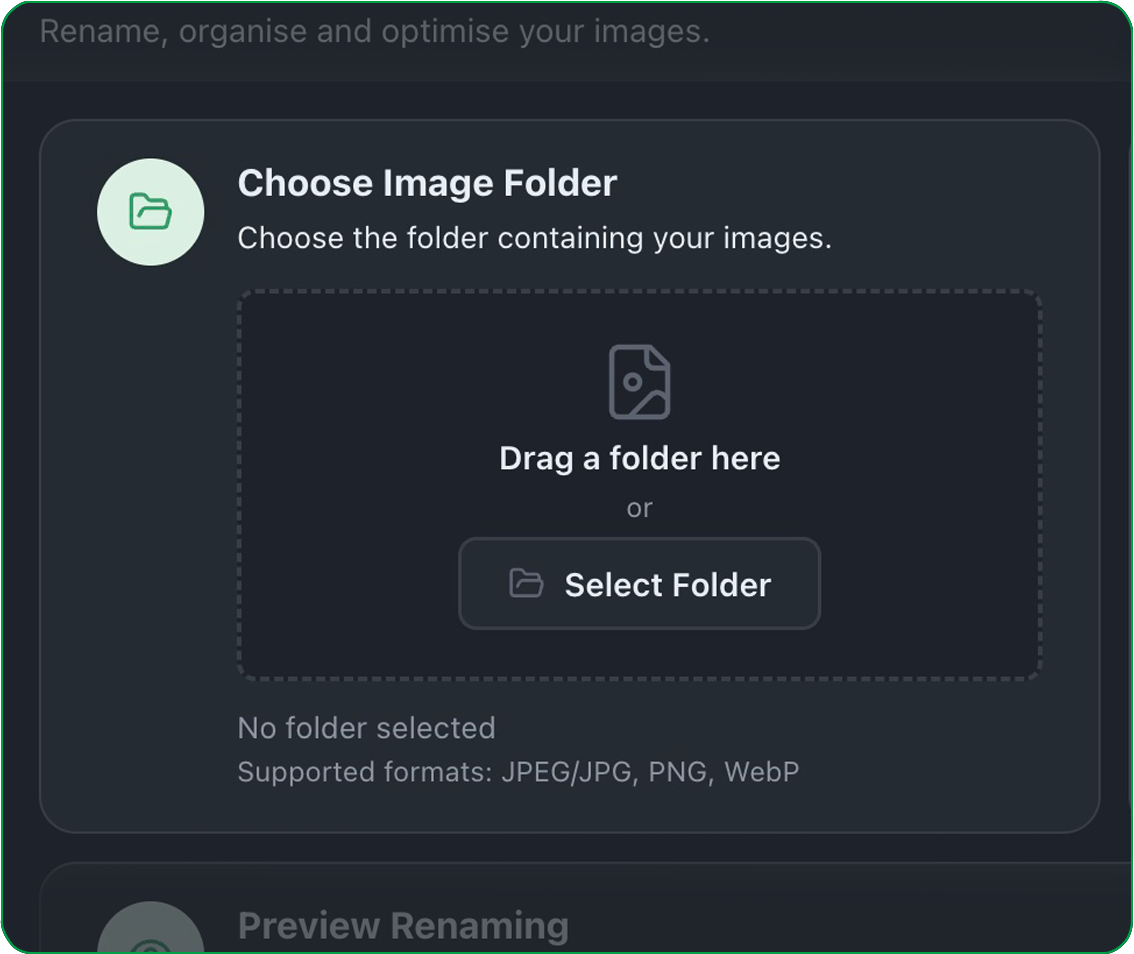
Select the folder containing the images you want to rename.
You can drag and drop a folder directly into VividForm or click Select Folder to browse your computer.
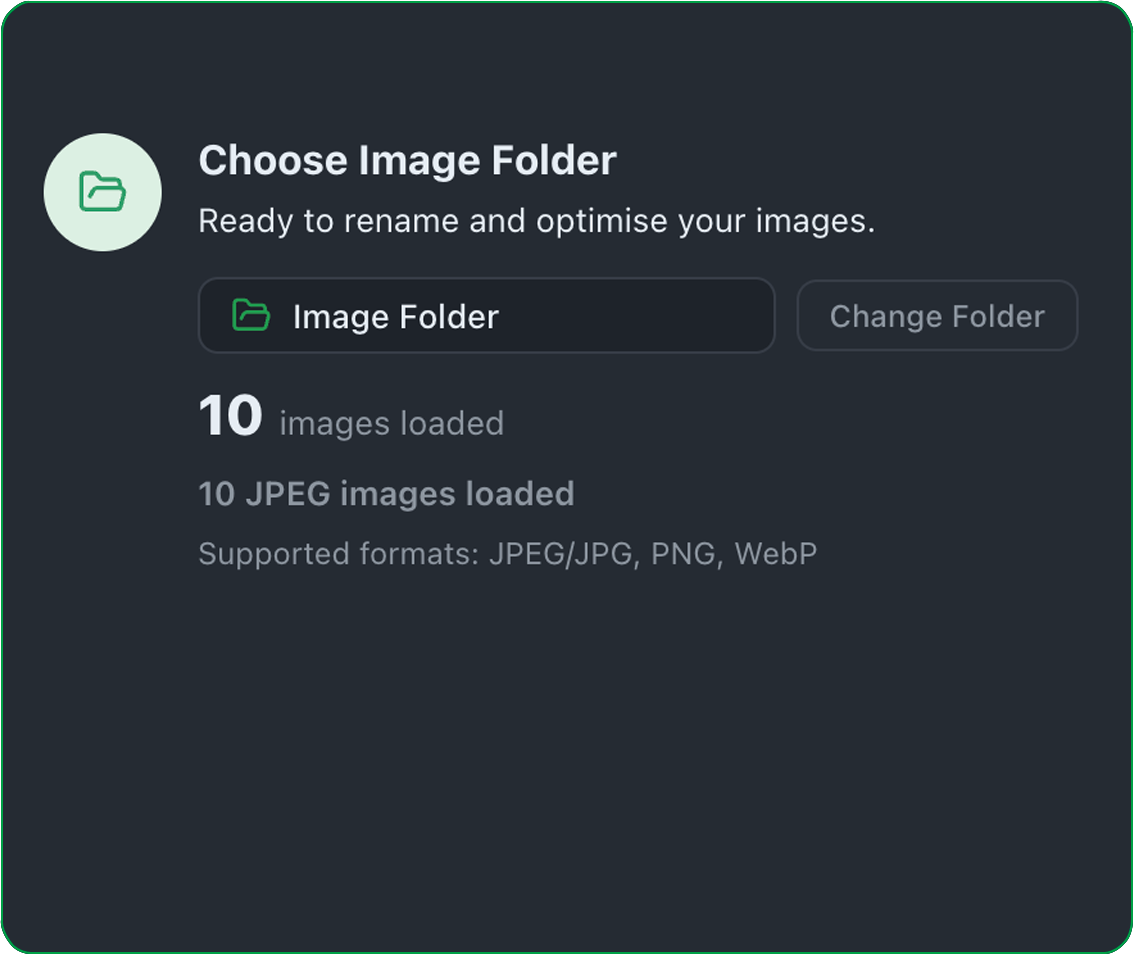
Once selected, VividForm automatically scans the folder, counts the supported images, and prepares them for processing.
Supported formats include JPEG/JPG, PNG and WebP.

Choose the folder containing your images
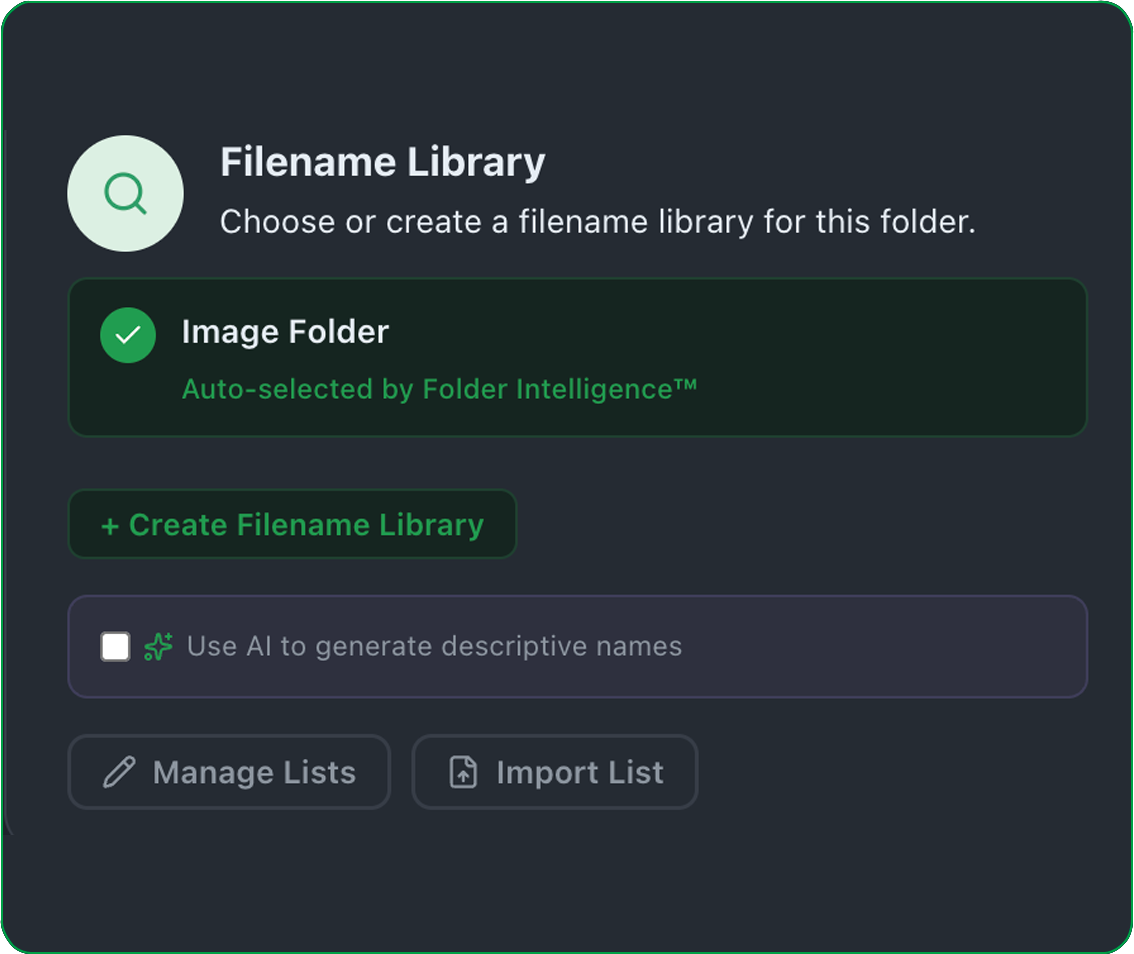
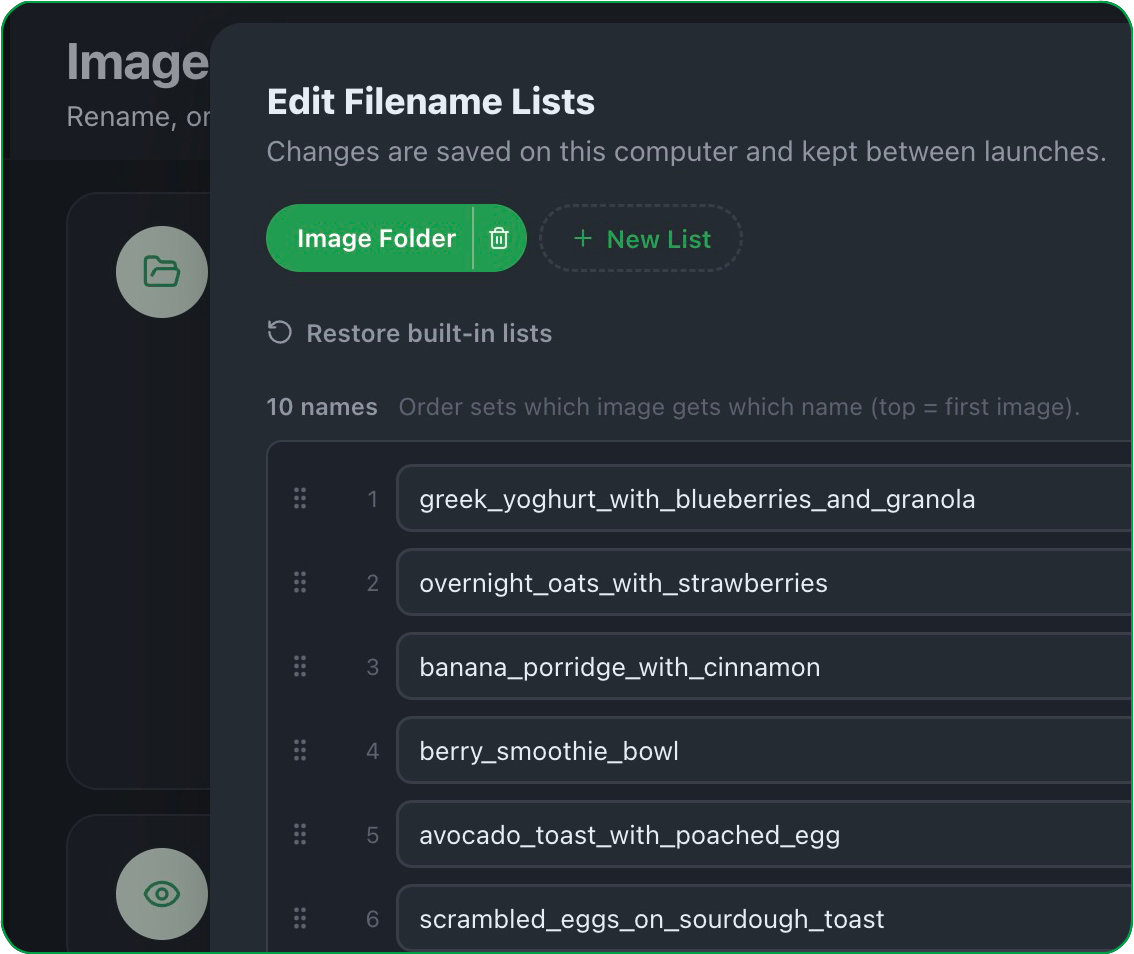
Choose an existing Filename Library or create a new one to define how your images will be renamed.
You can import filename lists from Word, Excel, or any plain text file. Each filename should be on its own line in a single column.
You can edit, reorder, rename, or delete your saved lists at any time.
To create a new library, select New List and enter your filenames.
Spaces are automatically converted to underscores (_) during processing to create clean, consistent filenames.

Select or create a Filename Library
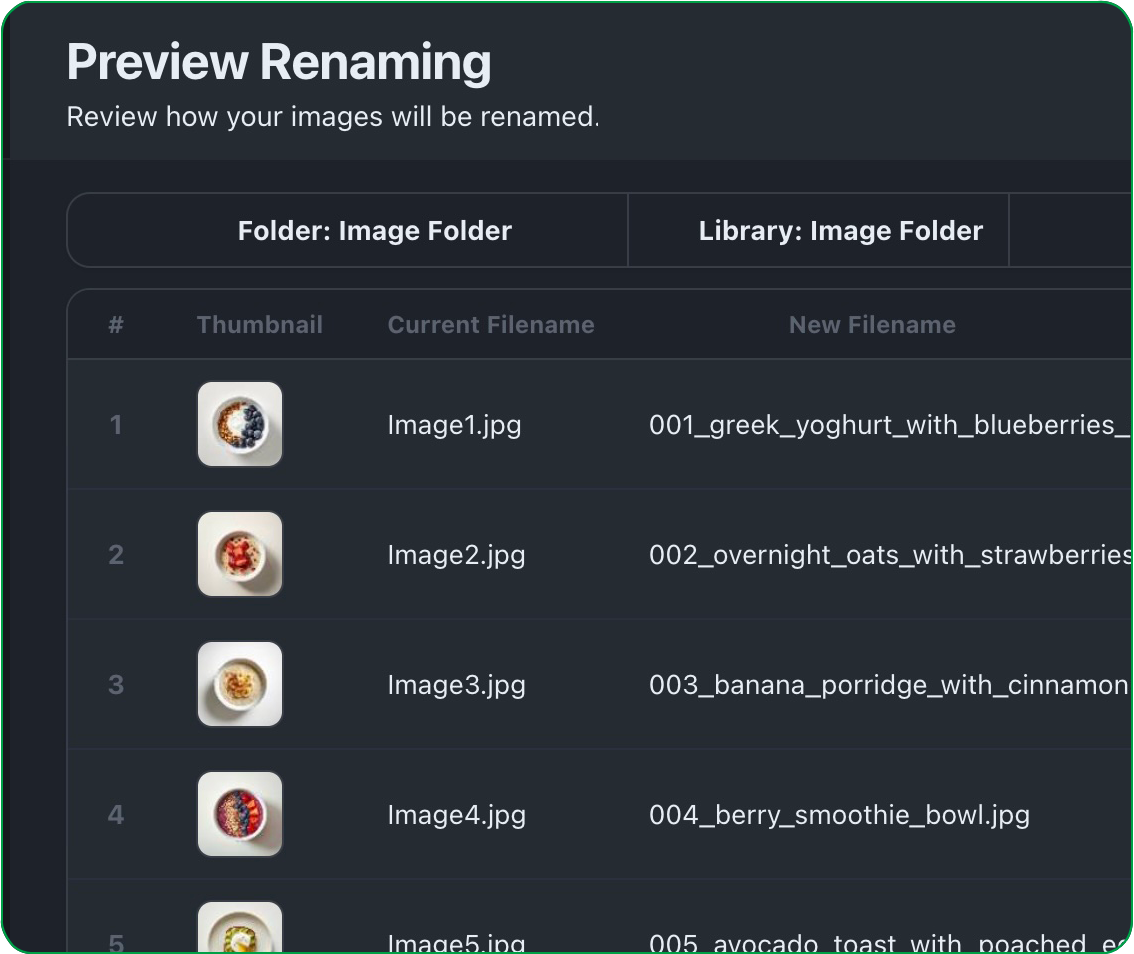
Review every proposed filename before processing your images.
The Preview window displays each image alongside its current filename and the new filename that will be applied.
If you'd like to make any changes, simply edit your Filename Library, then generate the preview again before processing.

Preview every filename
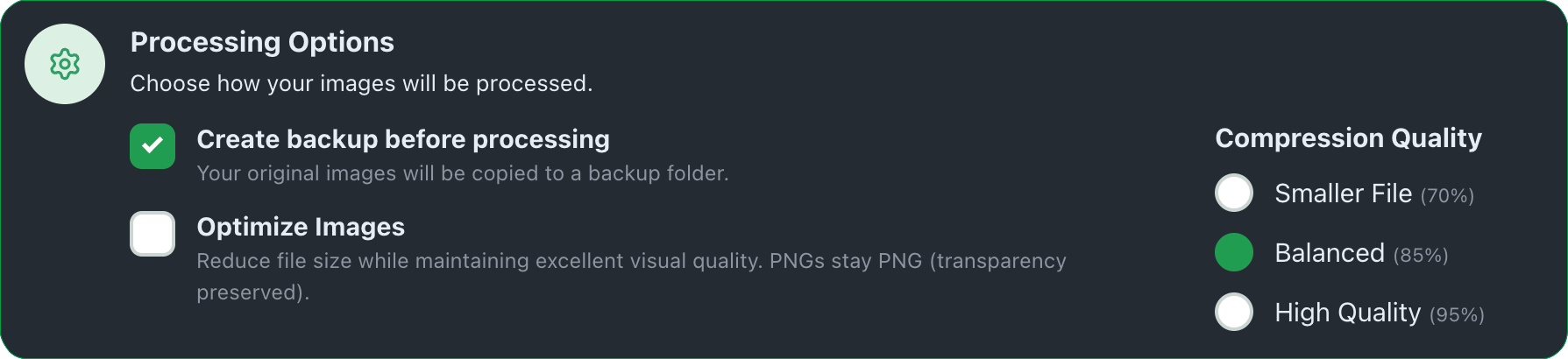
Configure how VividForm will process your images before renaming begins.
Select whether to create a backup of your original images, optimise file sizes, and choose the compression quality that best suits your workflow.

Choose processing options
These settings apply to every image in the current batch and can be changed at any time before processing.

Process your images and review the PDF report
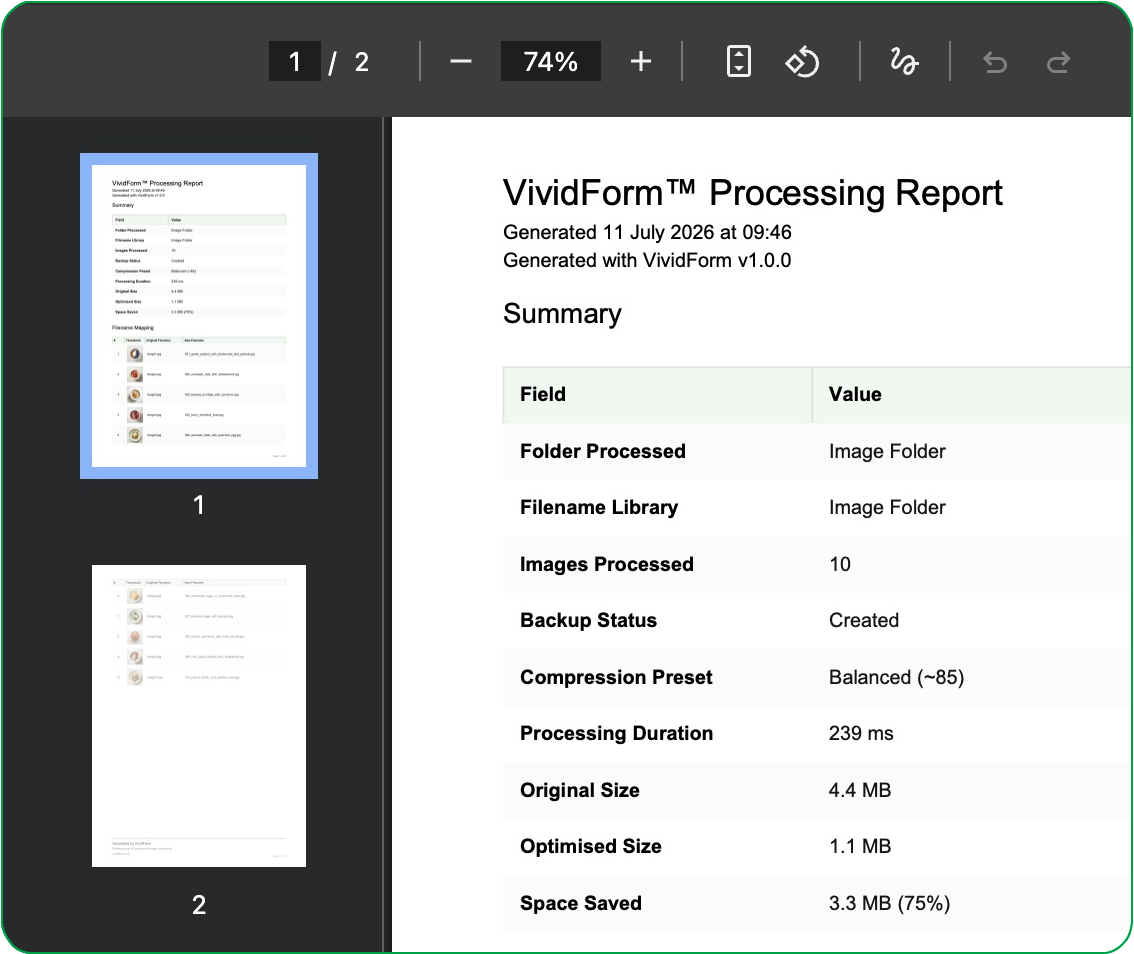
Process your images and review the generated PDF report to confirm the results.

Continue to VividForm Pro
You've successfully processed your first batch of images using the Free edition.
Next, discover how VividForm Pro unlocks unlimited processing, AI-powered filename generation and advanced workflow features.