Settings Guide
The Settings page allows you to customise VividForm to suit your workflow. Unlike the previous guides, this page is designed as a reference guide, explaining what each settings section does and when you might use it.
◷ Estimated time: 3 minutes
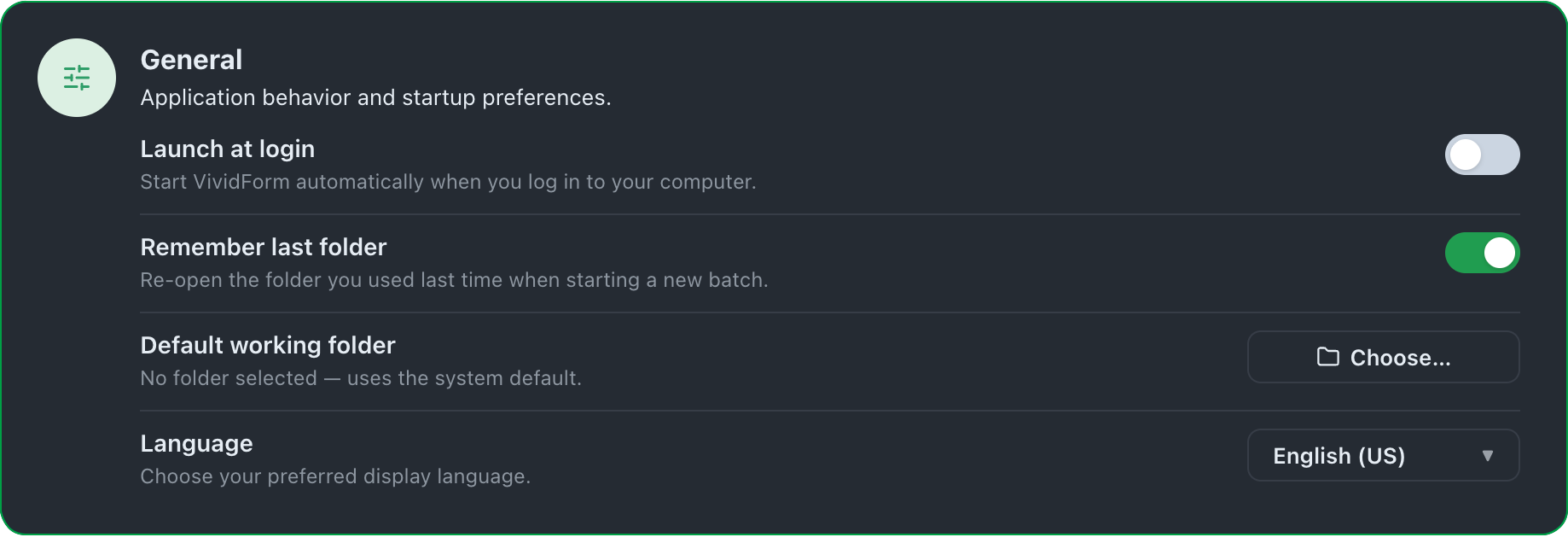
Within General you can:
Launch VividForm automatically when you log in.
Remember the last folder used.
Choose a default working folder.
Select your preferred display language.
These settings help tailor VividForm to your preferred workflow and working environment.

Configure how VividForm behaves when it starts.
Choose how VividForm looks while you work.
You can select:
Light
Dark
Follow System
Your chosen theme is applied throughout the application.

Appearance

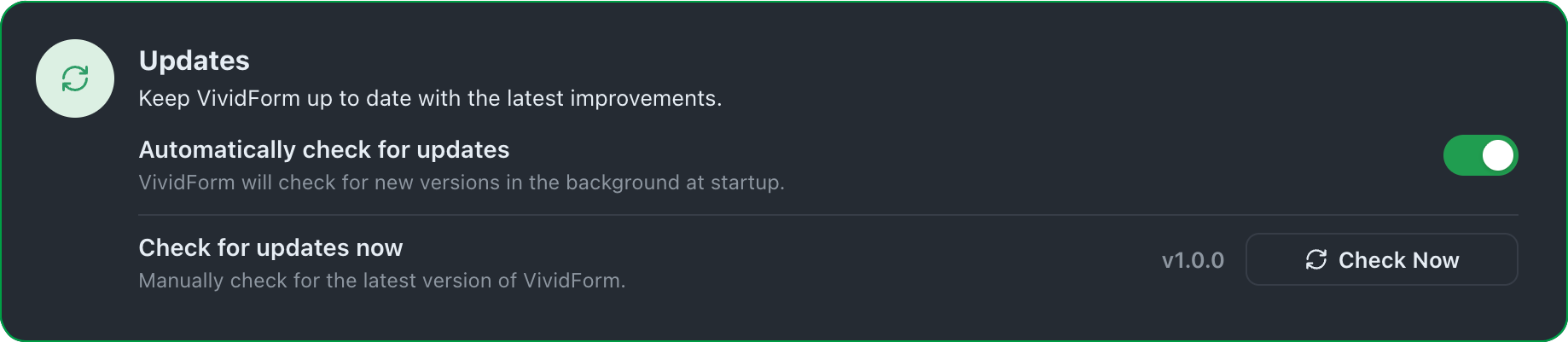
Keep VividForm up to date with the latest improvements.
From this section you can:
Enable automatic update checks.
Manually check for updates.
View the currently installed version.

Updates
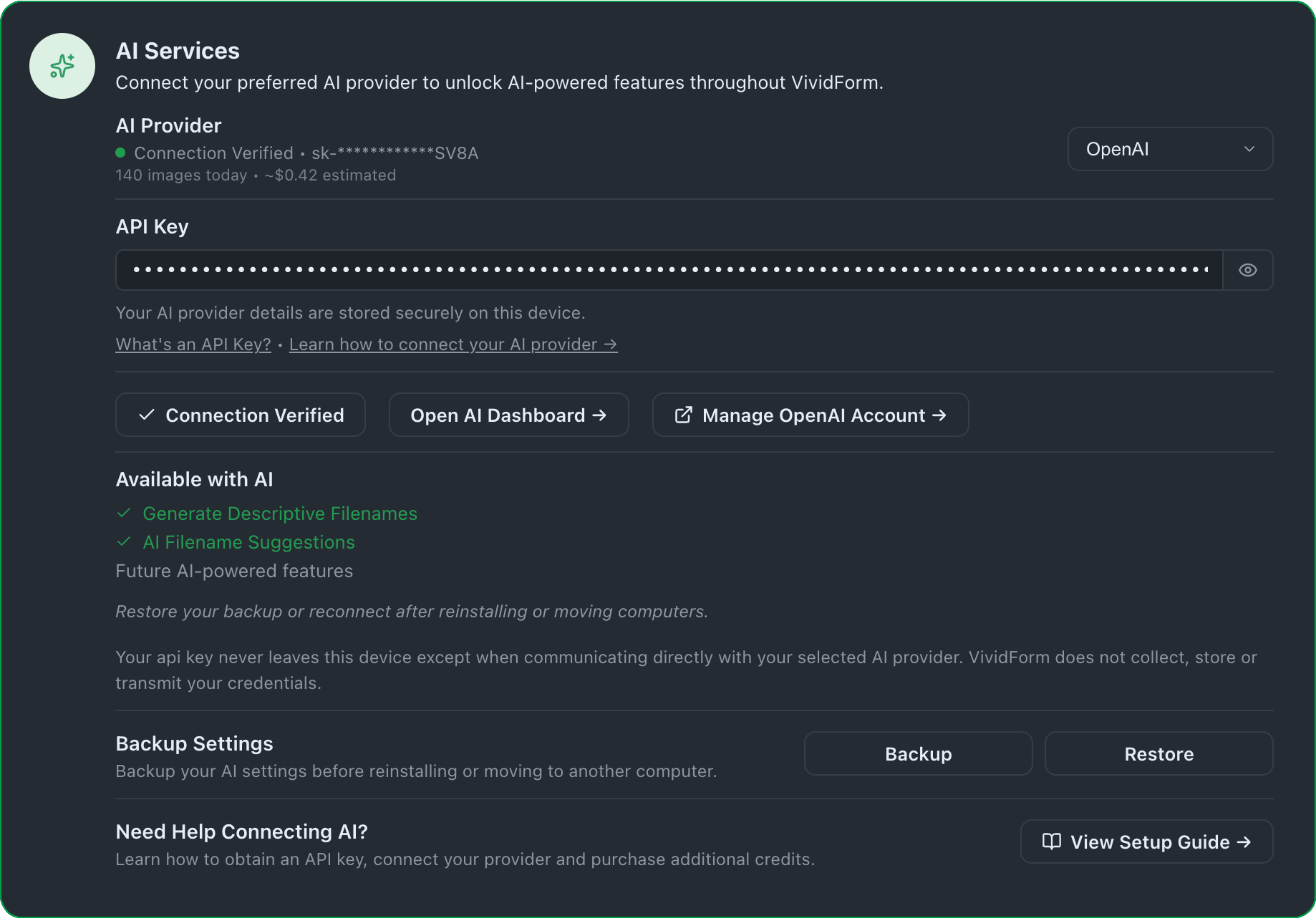
Manage your connected AI provider and related settings.
This section allows you to:
Change AI provider
Manage your API Key
Open your AI Provider Dashboard
Manage your AI account and billing
Backup and restore AI settings
First time connecting AI?
Follow the dedicated AI Setup Guide for a complete walkthrough.

AI Services
Maintenance tools for troubleshooting and workspace management.
Options include:
Reset Preferences
Clear Cache

Advanced
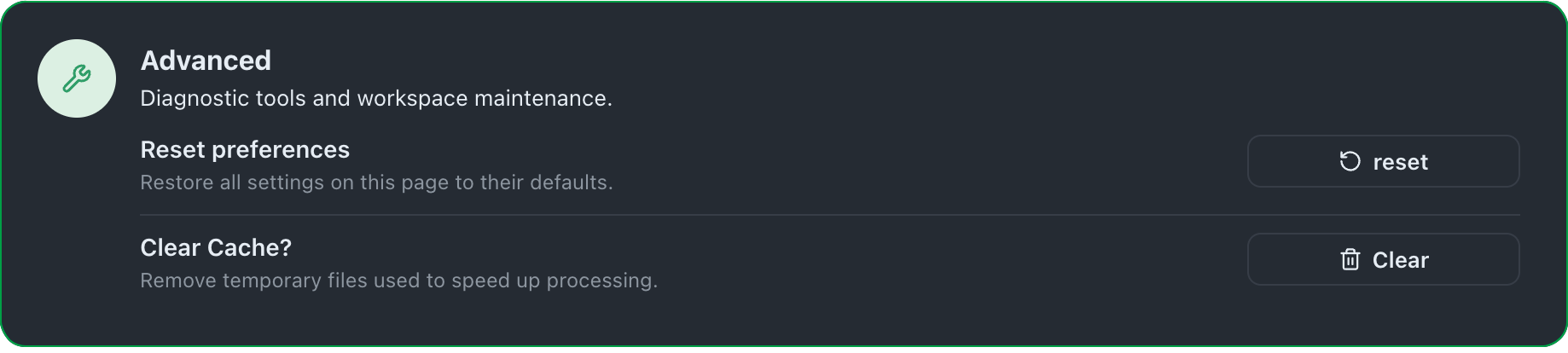

Resetting preferences restores the Settings page to its default values. Your Filename Libraries, processed images and projects are not affected.
Your preferences are now configured and VividForm is ready to work the way you want.
You can return to Settings at any time to:
Update your preferences
Manage your licence
Configure AI Services
Check for updates
This guide is intended as a reference page rather than a setup tutorial, making it easy to quickly locate and understand each section of the Settings page.